How to Block YouTube Shorts Permanently in 2026 (5 Methods)
Key Takeaways
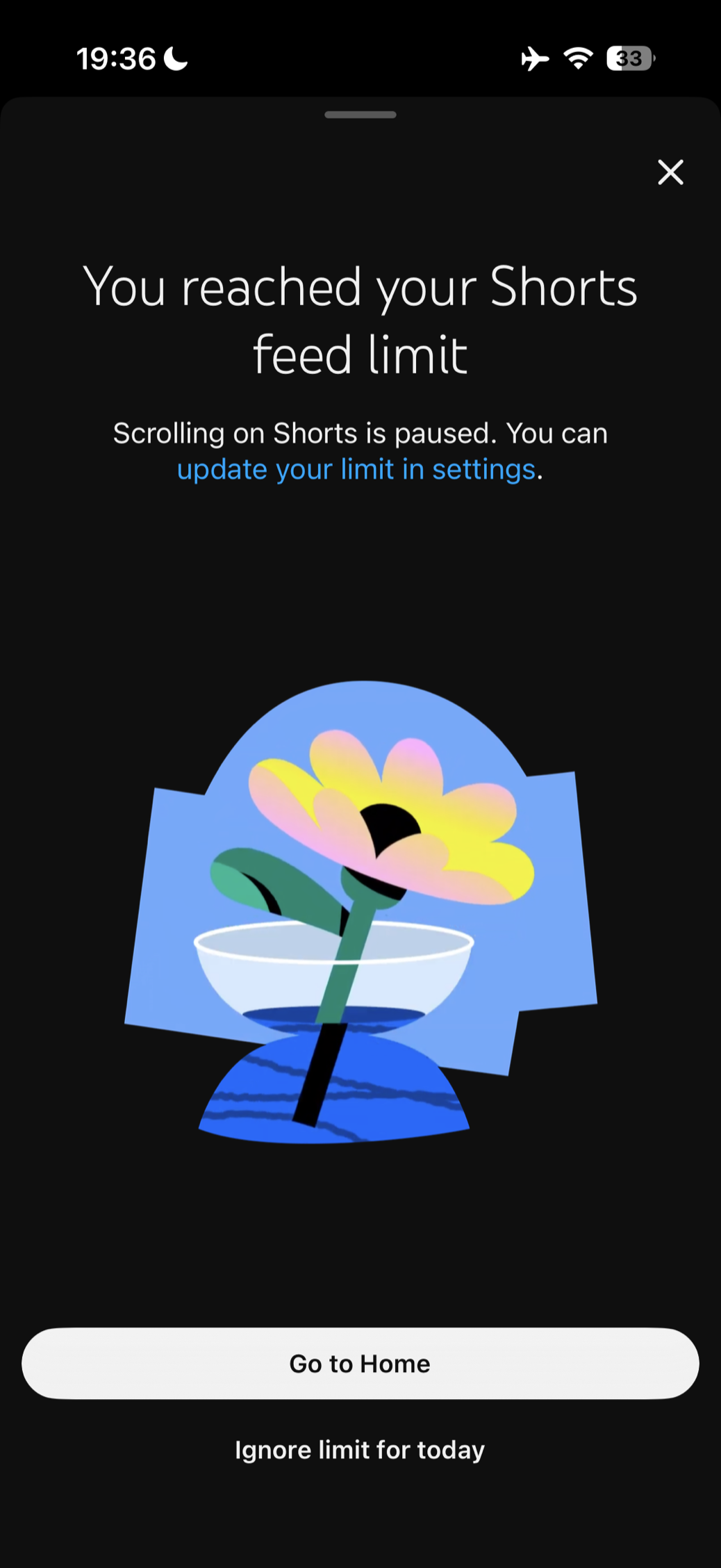
- YouTube now has a Shorts feed limit you can set to 0 minutes. It pauses the Shorts feed and shows a reminder screen, but that screen can be easily closed.
- "Show fewer Shorts" tells the algorithm you want less Shorts in your home feed, but the Shorts tab stays and Shorts come back over time.
- Logging out or pausing Watch History stops the personalized home feed from pulling you into Shorts, but you lose subscriptions, recommendations, and watch history features.
- ScrollGuard is the only method that permanently blocks the Shorts feed while keeping subscriptions, search, comments, and full-length videos working normally. Available as a freemium app on both iPhone and Android.
Can You Permanently Disable YouTube Shorts?
YouTube now has a built-in way to stop the Shorts feed: in the YouTube app, open Settings, tap Time management, and set the Shorts feed limit to 0 minutes. Once you reach the limit, scrolling in the Shorts feed is paused and a reminder screen appears instead. That screen has an X in the corner and an "Ignore limit for today" button, so it works as a speed bump rather than a wall, and individual Shorts still show up in search results, on channel pages, and in your subscriptions. If you want a block you cannot tap through, you need a third-party app such as ScrollGuard.
In total there are five methods worth knowing: set the Shorts feed limit to zero, hide Shorts from the home feed, log out of your account, pause Watch History to stop personalized recommendations, or install ScrollGuard to block the Shorts feed on your phone. The first four are free and built into YouTube or your account settings, and each one leaves a way back into Shorts. Only the last one is designed to stay in place.
The Real Problem With YouTube Shorts
You open YouTube to watch a tutorial or catch up on a channel you follow. Simple enough. But right there on the home screen, between the videos you actually searched for, is a row of Shorts. You tap one. Just one. Twenty minutes later you're deep in an endless vertical feed of clips you never asked for.
YouTube Shorts works the same way as every other short-form video feed: an algorithm picks what to show you next, each clip is short enough that you think "just one more," and before you know it you've lost a significant chunk of time. The feed is designed to keep you scrolling, not to help you find what you came for. If Instagram is another weak spot for you, the parallel guide on blocking Instagram Reels uses the same "remove the feed, keep the app" logic — and so does blocking the TikTok For You feed.
The good news is you don't need to uninstall YouTube. Here are three ways to reduce or block Shorts while keeping the rest of the app working normally. If you want the broader behavioral context, our posts on why TikTok is so addictive and the best apps to stop doomscrolling go deeper.
Method 1: Set YouTube's Shorts Feed Limit to Zero
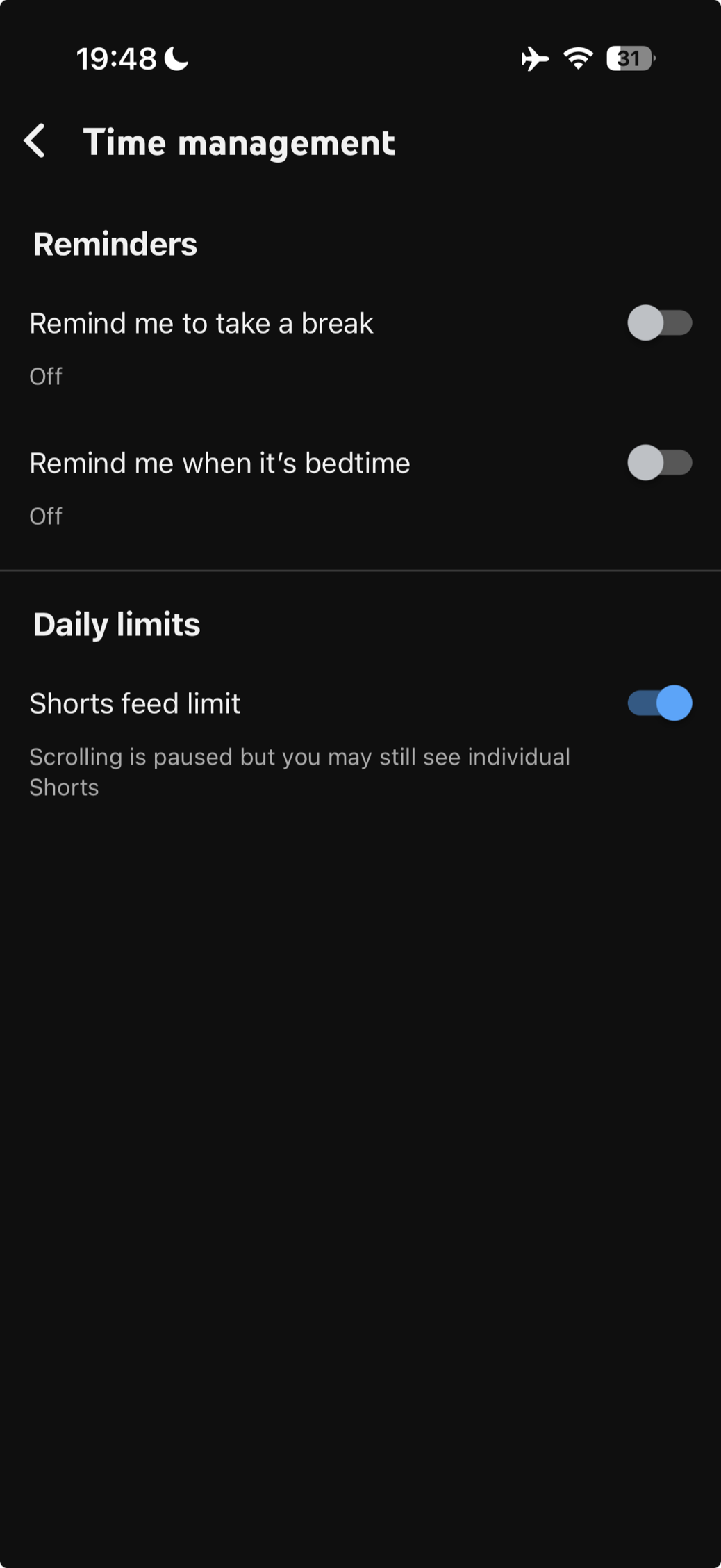
In April 2026 YouTube added a setting called Shorts feed limit to the mobile app. It lives with the other daily limits under Time management, and the list of durations includes 0 minutes, which means the Shorts feed is paused from the moment you open it. This is the official option, it is free, and it is the first thing to try. It is worth knowing exactly what it does before you rely on it.
How to do it
- Open the YouTube app and tap your profile picture, or the You tab in the bottom-right corner.
- Tap the Settings gear in the top-right corner.
- Tap Time management.
- Under Daily limits, turn on Shorts feed limit.
- Choose 0 minutes from the list of limits.
What it actually does
With the limit at zero, tapping the Shorts tab shows a full-screen card reading "You reached your Shorts feed limit" and, below it, "Scrolling on Shorts is paused. You can update your limit in settings." There are two buttons: Go to Home and Ignore limit for today. There is also an X in the top-right corner. Tapping the X or the ignore button drops you straight back into the scrolling feed, and YouTube's own help page describes the message as a reminder you can dismiss or ignore.
The setting's own subtitle in the app spells out the other gap: "Scrolling is paused but you may still see individual Shorts." Shorts keep appearing in search results, on channel pages, in your Subscriptions, and through links people send you. The Shorts tab also stays in the bottom bar. Think of it as a speed bump rather than a wall: useful if the problem is drifting into the feed without meaning to, less useful if the problem is that you go looking for it.
One more limitation: the Shorts feed limit exists only in the mobile app on iPhone and Android. There is no equivalent control on the desktop site.
Pros
- Official, free, and built into the YouTube app
- Takes under a minute and works the same on iPhone and Android
- Stops the endless scroll the moment you open the Shorts tab
- You stay signed in and nothing else about YouTube changes
Cons
- The limit screen can be closed with an X or overridden with "Ignore limit for today"
- Individual Shorts still appear in search, on channel pages, and in Subscriptions
- The Shorts tab stays in the bottom bar
- Mobile app only, with no desktop equivalent
Method 2: Hide Shorts From the Home Feed
YouTube's home feed includes a Shorts shelf between regular video recommendations. You can tell YouTube to show you fewer of them directly from that section.
How to do it
- Open YouTube and scroll your home feed until you see the Shorts section.
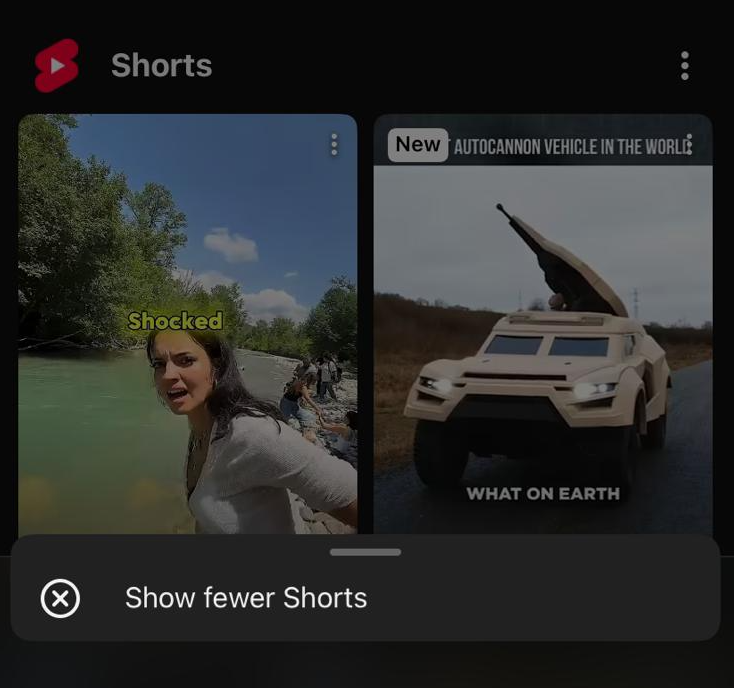
- Tap the three dots (⋮) in the top-right corner of the Shorts section.
- Tap "Show fewer Shorts".
What it actually does
This tells YouTube's algorithm that you're less interested in Shorts. Over time, you should see fewer Shorts shelves on your home feed. However, it doesn't eliminate them entirely. YouTube will still show some Shorts in your feed, and the dedicated Shorts tab at the bottom of the app remains fully accessible. One tap and you're right back in the infinite scroll.
Pros
- Quick and free, takes a few seconds
- Reduces Shorts appearing on your home feed
- Doesn't affect any other YouTube functionality
Cons
- Only reduces Shorts, doesn't remove them completely
- The Shorts tab remains fully accessible at the bottom of the screen
- YouTube may gradually show more Shorts again over time
Method 3: Log Out of Your YouTube Account
YouTube's home feed is entirely powered by your watch history and account activity. When you're signed out, the app has no data to build recommendations from, so the home feed won't show you any personalized content at all, including Shorts. The trade-off is that you also lose access to your subscriptions, so you'll need to search explicitly for every video you want to watch.
How to do it
- Open YouTube and tap your profile picture in the top-right corner.
- Tap your account name.
- Select "Use YouTube signed out".
What it actually does
When you're signed out, YouTube can't use your watch history or preferences to build a personalized feed. The home screen won't recommend anything to you, which means no personalized Shorts pulling you in. You'll need to actively search for what you want to watch.
However, the Shorts tab at the bottom still works. If you tap it, you'll see a generic Shorts feed. And since you're signed out, you lose access to your subscriptions, playlists, watch history, and any other account features. Every video you want to watch requires a manual search.
Pros
- Free and immediate
- The home feed won't recommend any content, including Shorts
- No personalized algorithm trying to hook you
Cons
- You lose access to subscriptions, playlists, and watch history
- You need to manually search for every video you want to watch
- The Shorts tab still works and shows a generic feed
- You can't like, comment, or save videos while signed out
Method 4: Pause Watch History to Cut Personalized Shorts
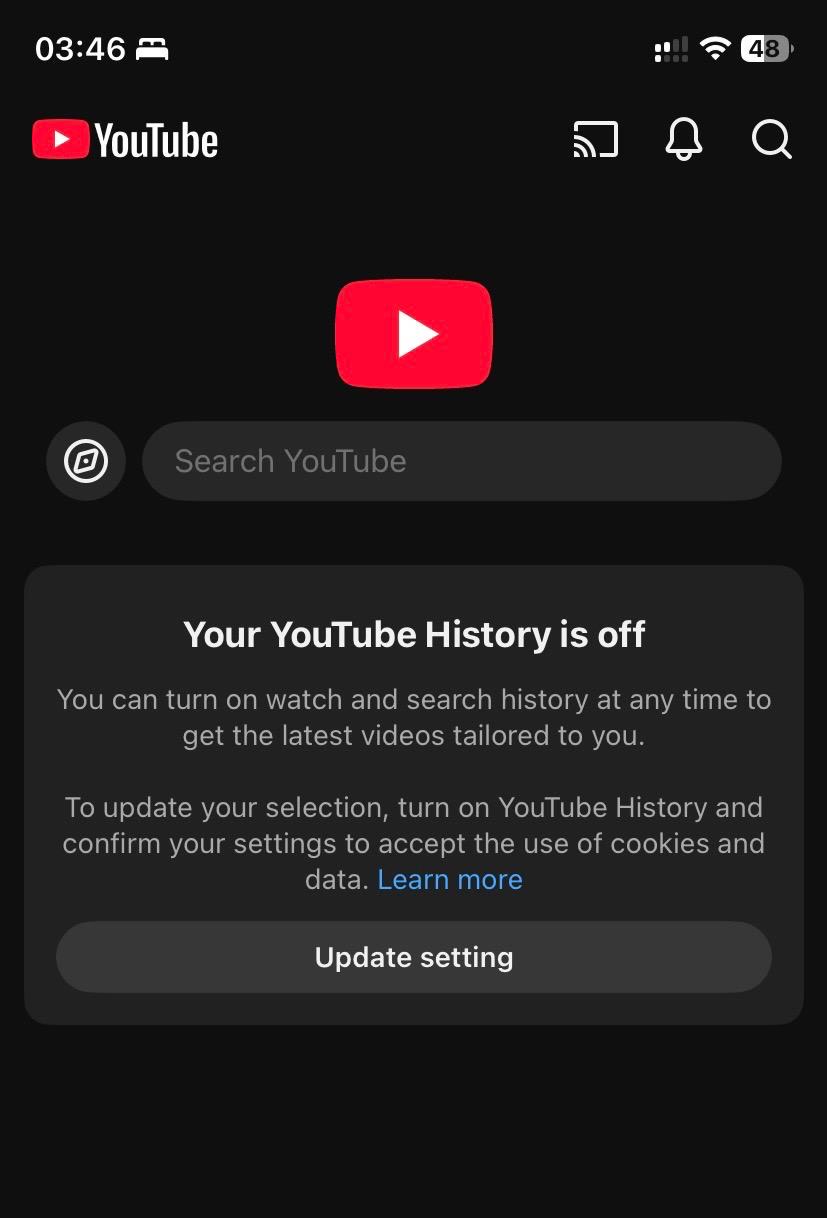
YouTube uses your watch history to decide which Shorts to recommend. When watch history is paused, the algorithm has no fresh signal to work with, so the home feed and Shorts shelf both lose most of their personalization. You stay logged in, you keep your subscriptions, but the engagement bait gets a lot weaker.
How to do it
- Open YouTube and tap your profile picture in the top-right corner.
- Tap Your data in YouTube.
- Tap YouTube Watch History, then Turn off.
- Optionally, also turn off YouTube Search History on the same screen for a stronger effect.
What it actually does
With Watch History paused, YouTube cannot build a personalized recommendation surface from your activity. The home feed becomes much more generic, and the Shorts shelf shows broadly trending content rather than the personalized hook it normally serves. The Shorts tab still works, and tapping into it still pulls up a generic trending Shorts feed, but the autopilot pull from the home page is significantly weaker.
The cost is that you also lose recommendation quality across the rest of YouTube. "Up next" suggestions, your home feed, and the discovery surface all become less useful. If you primarily use YouTube via subscriptions and search, this trade-off is reasonable; if you rely on the algorithm to surface new channels, this is a heavy hit.
Pros
- Free and built into YouTube
- You stay logged in and keep your subscriptions
- Significantly weakens personalized Shorts surfaces
Cons
- The Shorts tab is still there and still shows generic trending Shorts
- You lose personalized recommendations across all of YouTube, not just Shorts
- Watch History also powers features like "Continue watching" and resuming videos across devices
Method 5: Use ScrollGuard to Block Shorts on Your Phone
If you want to keep YouTube fully functional, stay signed in, and still block Shorts, ScrollGuard is built exactly for this.
How it works
ScrollGuard is a freemium app available on both iPhone and Android. Instead of blocking the entire YouTube app, it targets only the addictive parts. You choose exactly what to block. If you are on iPhone, see our dedicated guide on how to block YouTube Shorts on iPhone for the platform-specific setup:
- Block the Shorts feed so it's no longer accessible when you tap the Shorts tab
- Block Shorts in the home feed so they don't appear as you browse
- Keep everything else working: subscriptions, search, playlists, comments, and full-length videos
You stay signed in, you keep your subscriptions, and you remove the part that wastes your time. No trade-offs.
Check the available features per platform. If you want a broader reset beyond YouTube, how to make your phone less addictive in 15 minutes is the practical next step.
Pros
- Keep YouTube on your phone with full functionality (subscriptions, playlists, search)
- Fully blocks the Shorts feed, not just hidden but blocked
- Stay signed in to your account
- Works on both iPhone and Android
- Freemium, with core features available for free
Cons
- Some advanced features require a paid plan
- Requires installing a separate app
Which Method Is Right for You?
It depends on how much control you need and what you're willing to give up.
| Method | Removes Shorts? | Stay Signed In? | Cost |
|---|---|---|---|
| Shorts Feed Limit (0 min) | Pauses the feed, dismissible | Yes | Free |
| Show Fewer Shorts | Partially | Yes | Free |
| Log Out | Mostly | No | Free |
| Pause Watch History | Mostly | Yes | Free |
| ScrollGuard | Fully | Yes | Freemium |
Start with Method 1, the Shorts feed limit. It is official, free, and enough on its own if your problem is drifting into the feed rather than seeking it out. Pair it with Method 2 if Shorts still clutter your home feed. If you mostly use YouTube via subscriptions and search, pausing Watch History (Method 4) is a free middle ground that significantly weakens personalized Shorts. If you want something you cannot dismiss with one tap, while keeping YouTube fully functional on your phone, ScrollGuard is the option that blocks the Shorts feed without sacrificing your subscriptions or account features.
How to Block YouTube Shorts on Android
The Shorts feed limit is in the Android app too, at the same path: profile picture or the You tab, then the Settings gear, then Time management, then Shorts feed limit under Daily limits. Set it to 0 minutes and Android behaves exactly like iPhone, including the "Ignore limit for today" button that lets you keep scrolling anyway.
On Android, ScrollGuard uses the Accessibility Service to detect when you tap into the Shorts tab or when a Short surfaces in your home feed, and it automatically redirects you back. The setup takes about a minute:
- Install ScrollGuard from Google Play. The core feed-blocking features are free.
- Grant the Accessibility Service permission when ScrollGuard asks for it on first launch. This is what lets the app detect when you've landed on the Shorts feed.
- Turn on YouTube in ScrollGuard's list of supported apps and enable the Shorts blocks. You can choose to block the Shorts tab, Shorts in the home feed, or both.
- Open YouTube normally. Subscriptions, search, comments, and full-length videos all work as before. The Shorts feed is the only thing that stops working.
The Shorts tab still appears in the UI, but tapping it bounces you out, so the infinite-scroll trigger is neutralized. The same Android setup also blocks Reels and TikTok if you toggle those apps on inside ScrollGuard.
On iPhone the approach is different because iOS sandboxes apps. The companion guide on how to block YouTube Shorts on iPhone walks through the Safari extension and Apple Shortcuts automation needed on iOS.
Frequently Asked Questions
Can you disable YouTube Shorts on mobile?
Partly. On both iPhone and Android you can set a Shorts feed limit of 0 minutes under Settings, Time management, and tap "Show fewer Shorts" on the home feed shelf. Both reduce how often you drift into Shorts, but the limit screen can be closed with one tap, the Shorts tab stays in the bottom bar, and individual Shorts still appear in search results and on channel pages. Nothing built into YouTube turns Shorts off permanently. For a block you cannot tap past, you need a third-party app such as ScrollGuard.
Does the zero-minute Shorts feed limit permanently disable Shorts?
No. When you reach the limit, YouTube shows a reminder screen you can close with the X in the corner or with the "Ignore limit for today" button, and either one puts you straight back into the feed. Individual Shorts also keep appearing in search results, on channel pages, in Subscriptions, and through shared links, so the limit reduces scrolling rather than removing Shorts.
Can I completely remove the Shorts section from YouTube?
YouTube doesn't offer a built-in setting to fully remove Shorts. You can pause the feed with a 0-minute Shorts feed limit, or reduce Shorts with "Show fewer Shorts," logging out, or pausing Watch History, but the Shorts tab and section will still exist. ScrollGuard is the only way to fully block the Shorts feed on your phone.
Does pausing Watch History stop YouTube Shorts?
It significantly weakens personalized Shorts in your home feed because YouTube no longer has fresh watch-history signal to build recommendations from. The Shorts tab still works, and tapping it shows a generic trending Shorts feed. Pausing Watch History also weakens all other YouTube recommendations, not just Shorts, so it is a trade-off.
Will "Show fewer Shorts" permanently remove Shorts from my feed?
No. It reduces the number of Shorts shown in your home feed, but YouTube will still show some over time. The Shorts tab at the bottom of the app also remains fully accessible.
Does logging out of YouTube remove all Shorts?
Logging out stops the home feed from recommending any content, so you won't see personalized Shorts there. However, if you tap the Shorts tab, you'll still see a generic Shorts feed. You also lose access to subscriptions, watch history, and need to search manually for everything you want to watch.
Is ScrollGuard free?
ScrollGuard offers a freemium model. Core features like blocking Shorts are available for free. Advanced customization options are available with a paid plan.
Does blocking Shorts affect my YouTube account?
None of these methods (except logging out) affect your YouTube account. You won't lose subscriptions, playlists, or any data. These methods only change what you see in the app on your device.
Sources
Keep YouTube. Lose the Shorts.
ScrollGuard blocks Shorts and other addictive feeds while keeping subscriptions, search, and full-length videos working perfectly.