How to Make Your Phone Less Addictive in 15 Minutes
Key Takeaways
- Turn on grayscale first. It keeps your phone useful, but makes feeds, badges, and thumbnails much less stimulating.
- Remove the icons for the apps you compulsively open. Keep them in App Library or the drawer so access takes one extra step.
- Turn off badges and non-human notifications. If a notification is not from a real person, it usually does not deserve your attention.
- Move your addictive apps off the first screen. Friction matters more than motivation.
- Block short-form feeds directly. If Reels or Shorts are the real trap, use ScrollGuard instead of deleting the whole app.
If your phone feels impossible to put down, that is not an accident. Modern apps are built around saturated colors, red badges, autoplay, infinite scroll, and unpredictable rewards. Every one of those design choices raises the odds that you tap one more thing and stay a little longer.
The fastest fix is not a full digital detox. It is a phone setup reset. In about 15 minutes, you can make your phone noticeably less sticky while still keeping maps, messages, camera, banking, and the parts of social media you actually care about.
Why Your Phone Hooks You So Fast
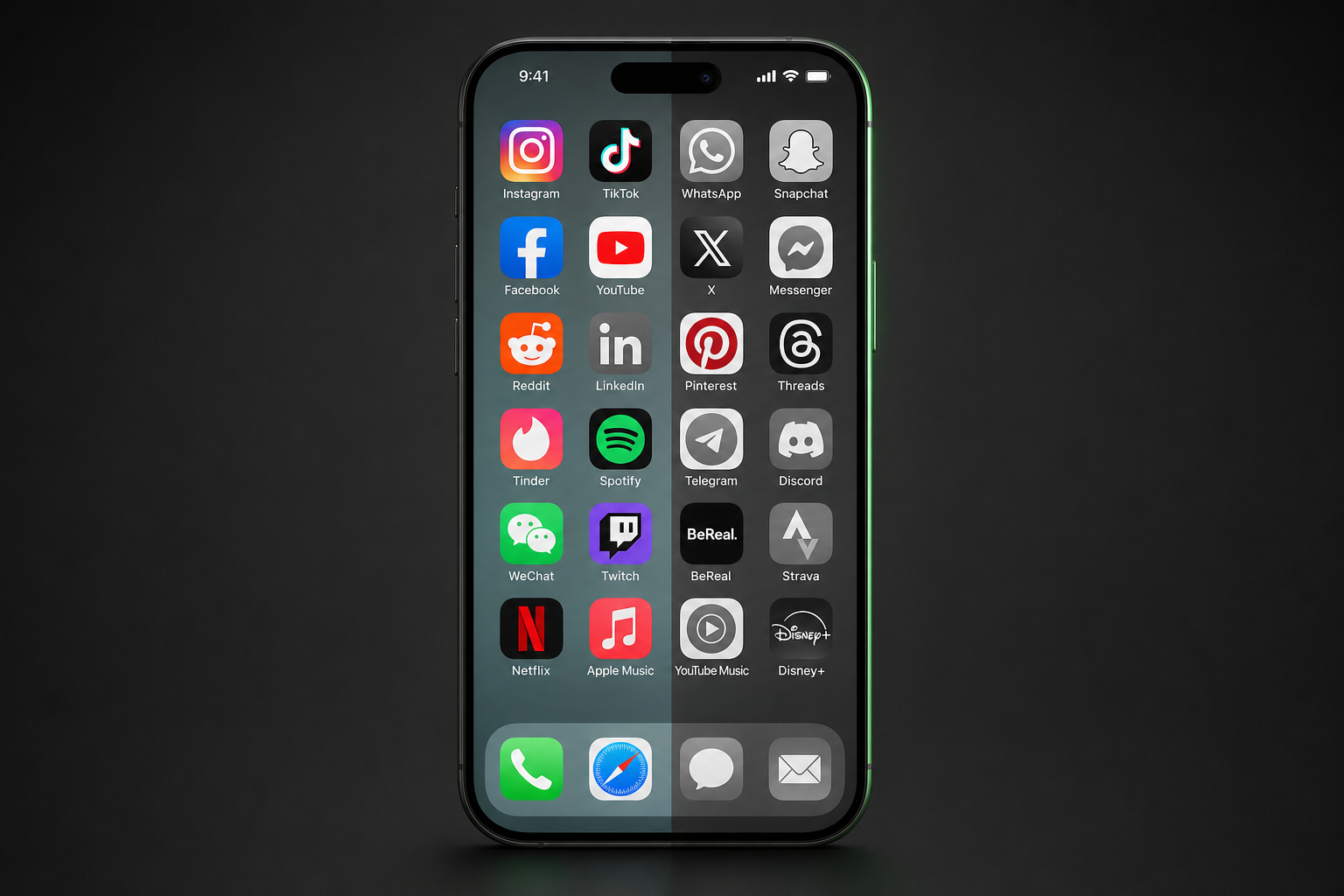
Color matters more than most people realize. Bright reds, neon highlights, colorful thumbnails, and animated interfaces create high-salience cues that pull your attention before you have consciously decided to engage. That is why grayscale is such a strong first move: it strips out a lot of the visual stimulation while leaving the phone fully functional.
This is also why “just use more willpower” usually fails. Your home screen, notification badges, and short-form feeds are doing the opposite of helping you. They are engineered to make the next tap feel easy and rewarding.
If you want the deeper neuroscience behind this, read why TikTok is so addictive. For this post, we will stay practical.
The 15-Minute Phone Reset
Here is the order I recommend, because it gives the biggest payoff in the least time:
Turn on grayscale
This is the highest-impact visual change and the easiest to test immediately.
Remove addictive app icons
Keep the apps installed, but stop presenting them to yourself every time you unlock your phone.
Use Search, Not Taps
Stop browsing for icons. Swipe down/up and type the name of the app you actually want to open.
Block the worst feeds
If your problem is Reels, Shorts, or TikTok, remove the trigger instead of deleting the whole app.
Why Grayscale Is the Best First Step
If you only do one thing from this article, do this one. Strip the "candy coating" off your UI.
Grayscale makes your phone feel boring on purpose. That sounds negative, but it is exactly the point. Social apps rely heavily on color contrast, high-saturation thumbnails, and visual novelty to keep you engaged. When everything is gray, your phone becomes more like a tool and less like a slot machine.
This "visual dopamine" is a real design tactic. App developers use specific shades of red for notification badges and bright, warm colors for icons because they trigger a primitive reward response in our brains. By enabling grayscale, you are neutralizing these psychological triggers at the source.
It is also a good intervention because it does not depend on self-control in the moment. Once it is on, your icons, thumbnails, and feeds all get less compelling at the system level.
Research is not perfect here, but it is directionally useful. Studies cited below found grayscale was associated with lower screen time, lower problematic smartphone use, and lower self-reported anxiety in some groups. My view is simpler: even without a lab study, you can feel the difference within five minutes.
Why it works in practice
- Notification badges stop screaming at you.
- Instagram, TikTok, and YouTube thumbnails feel less rewarding.
- Your home screen looks calmer, so you are less likely to open apps reflexively.
- The phone still works normally, so it is realistic to keep using.
How to Put Your iPhone in Grayscale
According to Apple’s accessibility settings, the cleanest path is:
- Open Settings.
- Tap Accessibility.
- Tap Display & Text Size.
- Tap Color Filters.
- Turn Color Filters on.
- Select Grayscale.
If you want to actually keep using it, add a fast toggle:
- Go to Settings > Accessibility > Accessibility Shortcut.
- Select Color Filters.
- Now you can toggle grayscale with a triple-click of the side button.
You can go one step further and use Back Tap or a scheduled Focus mode so grayscale turns on in the evening, during work hours, or when you are likely to spiral into scrolling.
How to Put Your Android Phone in Grayscale
Android varies by brand, but the two most common routes are Bedtime mode in Digital Wellbeing and Accessibility color settings.
Option 1: Bedtime Mode
- Open Settings.
- Go to Digital Wellbeing & parental controls.
- Tap Bedtime mode.
- Turn on Use Bedtime mode.
- Enable Grayscale.
- Set a schedule if you want it automatic.
Option 2: Accessibility / Color Correction
- Open Settings.
- Search for Color correction, Color filters, or Grayscale.
- If your phone supports it, choose Grayscale or Monochromacy.
Samsung, Pixel, and other Android phones can place these controls in different menus, so the fastest move is often to use the search bar inside Settings and type “grayscale.”
Remove the App Icons for the Apps You Open on Autopilot
This is the second best tactic because it removes a cue, not just a behavior.
If Instagram, TikTok, Reddit, X, or YouTube live on your home screen, you are asking your future self to resist them dozens of times per day. That is a bad system. A better system is to leave the app installed, but force yourself to search for it.
What to do:
- Take addictive apps off the dock and off your first home screen.
- Leave only utilities in obvious positions: messages, maps, notes, camera, calendar, banking.
- Disable notification badges for social apps so red dots are not constantly asking for attention.
The Power of "Keyword Navigation"
Instead of browsing through a grid of icons (which invites mindless clicking), start using your phone's search function to open apps. This forces you to be intentional about what you are looking for.
- On iPhone: Swipe down from the middle of the screen to open Spotlight.
- On Android: Swipe up for the app drawer and tap the search bar (or use a minimalist launcher that defaults to text search).
Why it works: Typing a keyword requires active thought, whereas tapping a bright icon is often a subconscious reflex. If you can't remember the name of the app you wanted to open, you probably didn't need to open it in the first place.
Block Distractions, Not Apps
Grayscale and icon removal help, but if short-form feeds are the main problem, they do not remove the trigger itself. You can still tap into Reels, Shorts, or TikTok and lose 45 minutes.
That is where ScrollGuard is a better long-term setup. Instead of locking you out of entire apps, ScrollGuard removes the addictive parts while keeping the useful parts intact. If you are comparing different approaches before committing, the roundup in best apps to stop doomscrolling breaks down where this approach fits versus timers and blockers.
- Keep Instagram, but block Reels.
- Keep YouTube, but block Shorts.
- Keep TikTok, but block the For You feed.
- Keep DMs, stories, subscriptions, and the rest of the app working.
If you want platform-specific details, start from the main ScrollGuard page and then open the relevant setup from there.
My honest recommendation
If your phone use is mildly annoying, start with grayscale and icon removal.
If your real issue is endless short-form video, go further and remove the feed itself. That is usually more effective than time limits, because it cuts off the loop before it starts.
This is the core ScrollGuard idea: block distractions, not apps.
What to Expect After You Change These Settings
Your phone will feel a bit dull. Good. That is the win.
For the first few days, you may find yourself turning color back on or digging for the app drawer automatically. That does not mean the system failed. It usually means you successfully made the habit visible.
Keep the setup simple enough that you will actually live with it. For most people, the best stack is:
- Grayscale on by default or on a schedule.
- No social apps on the first home screen.
- No badges except direct messages if you truly need them.
- ScrollGuard for the specific feeds that eat your time.
Frequently Asked Questions
Does grayscale actually make your phone less addictive?
For a lot of people, yes. It removes the bright colors that make notifications, app icons, and video thumbnails feel rewarding. It will not solve everything by itself, but it is one of the fastest low-effort changes you can make.
How do I turn on grayscale on iPhone?
Go to Settings, Accessibility, Display & Text Size, Color Filters, then turn Color Filters on and select Grayscale. Add Color Filters to the Accessibility Shortcut if you want a fast triple-click toggle.
How do I turn on grayscale on Android?
On many Android phones, use Bedtime mode inside Digital Wellbeing and enable grayscale there. Some phones also offer grayscale through Accessibility color settings or color correction options.
Is removing app icons actually useful?
Yes, because it removes a repeated visual trigger. If you have to search for an app instead of seeing it every time you unlock your phone, you create just enough friction to interrupt reflexive opens.
What is the best alternative to deleting social media?
For most people, the best alternative is to keep the app but remove the addictive feed. That is what ScrollGuard is built for: you keep the useful parts of Instagram, YouTube, and similar apps while blocking the parts that trigger compulsive scrolling.
Sources
- Apple Support: Use display accommodations on iPhone
- Apple Support: Use accessibility shortcuts on iPhone
- Apple Support: Turn Back Tap on or off on iPhone
- Apple Support: Set up a Focus on iPhone
- Google Help: Manage your time in Bedtime mode
- Google Help: Change color and motion settings
- Apple Support: Change display colors on iPhone (Color Filters & Grayscale)
- Android Accessibility Help: Change text & display settings (color correction & grayscale)
- Holte, A. J. & Ferraro, F. R. (2020). True colors: Grayscale setting reduces screen time in college students.
- Holte, A. J., Giesen, D. T. & Ferraro, F. R. (2021). Color me calm: Grayscale phone setting reduces anxiety and problematic smartphone use.
- BMC Medicine (2025): Smartphone screen time reduction improves mental health: a randomized controlled trial
Keep the Useful Parts of Your Phone
ScrollGuard blocks Reels, Shorts, and other addictive feeds while keeping messaging, stories, subscriptions, and the rest of your apps usable.